Mac users often look for better ways to improve productivity, screen space, and visual control on their desktops. A common comparison in the macOS customization community focuses on SketchyBar and the default menu bar inside macOS. Both solutions serve similar purposes on the surface, yet they differ significantly in flexibility, design control, and user experience.
Understanding the macOS Menu Bar
Apple’s macOS menu bar remains one of the most recognizable interface elements in desktop computing. It sits at the top of the screen and provides system controls, app menus, Wi-Fi status, battery indicators, search tools, and time display. Its design follows Apple’s strict interface guidelines, ensuring consistency, stability, and simplicity.
The macOS menu bar integrates deeply with system functions. Users benefit from seamless app switching, quick access to settings, and reliable system indicators. Apple optimizes it for performance and accessibility, making it suitable for everyday users who prefer a stable, minimal setup without the overhead of customization.
Read More: Fix SketchyBar Issues: Troubleshooting and Solutions Guide
Despite its strengths, the default menu bar offers limited personalization. Users cannot easily redesign its layout, apply advanced styling, or introduce dynamic widgets beyond what Apple allows. This limitation becomes noticeable for developers, designers, and productivity-focused users who want more control over their desktop environment.
What SketchyBar Brings to macOS
SketchyBar introduces a highly customizable alternative to the standard macOS menu bar experience. Built with flexibility in mind, it allows users to design and control every element of their status bar. Unlike the default system bar, SketchyBar supports scripting, custom modules, animations, and third-party integrations.
Developers and power users often choose SketchyBar to create a fully personalized workflow. It can display system stats, music information, workspace indicators, and application-specific controls in a visually structured format. Every component can be styled and positioned according to user preference, enabling a tailored desktop experience that goes far beyond Apple’s default options.
Another major advantage lies in automation. SketchyBar integrates with scripting tools such as shell scripts and external utilities, allowing real-time updates and dynamic content rendering. This capability transforms the menu bar into an interactive control center instead of a static interface element.
Customization and Flexibility Comparison
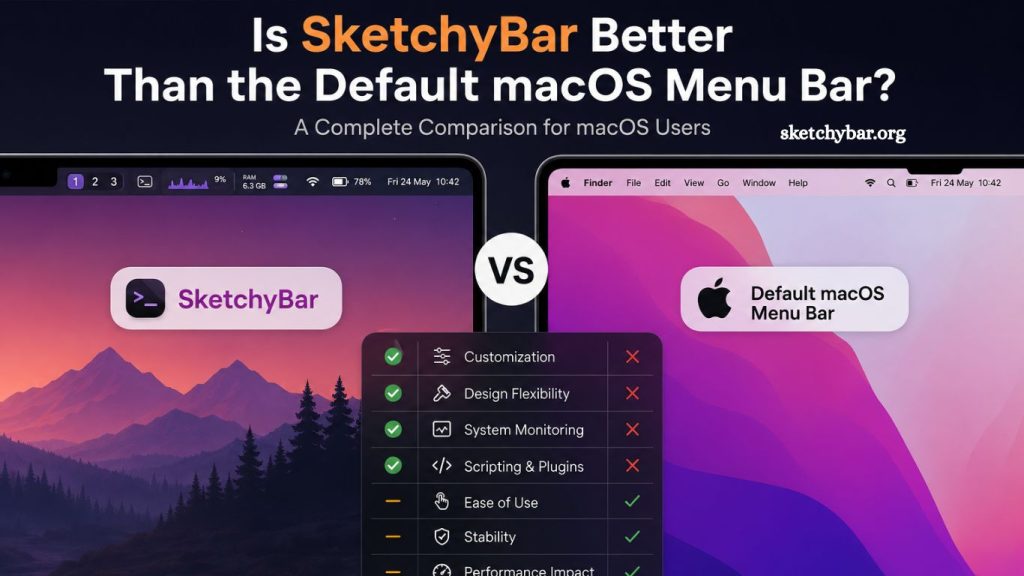
Customization remains the most significant difference between SketchyBar and the default macOS menu bar. Apple prioritizes stability and consistency, which results in a controlled but limited interface. Users can rearrange some icons and hide certain elements, yet bigger structural changes remain restricted.
SketchyBar takes the opposite approach. It provides complete control over layout, visual hierarchy, fonts, colors, spacing, and behavior. Users can create minimal setups with only essential information or build advanced dashboards containing multiple system monitors and shortcuts.
This level of flexibility makes SketchyBar especially appealing to developers, Linux-style desktop enthusiasts, and users who prefer modular environments. However, it also introduces complexity, requiring knowledge of configuration and setup.
Performance and System Impact
Performance plays a crucial role in evaluating any system-level tool. The macOS menu bar is deeply integrated into the operating system, ensuring near-zero overhead and maximum efficiency. Apple optimizes it to run smoothly even under heavy workloads, making it virtually invisible in terms of resource consumption.
SketchyBar, while lightweight compared to many third-party tools, still introduces additional processes. Its performance depends on how many scripts, modules, and external integrations are active. Proper configuration ensures minimal impact, but poorly optimized setups may consume more resources than the default menu bar.
For most modern Macs, the difference remains negligible. However, users with older hardware or extremely optimized workflows may prefer the native solution for guaranteed stability.
Ease of Use and Setup
Apple designs the default macOS menu bar for immediate usability. No setup, configuration, or technical knowledge is required. Users receive a fully functional interface from the first boot, making it ideal for beginners and general users.
SketchyBar requires installation and manual configuration. Users typically edit configuration files and define modules using scripting languages. While documentation and community examples help simplify the process, a learning curve still exists.
This difference highlights two distinct audiences. macOS targets mainstream users seeking simplicity, while SketchyBar targets advanced users who value control over convenience.
Aesthetic Control and Design Freedom
Visual design plays a major role in modern desktop customization. The default macOS menu bar follows Apple’s minimalist aesthetic with limited variation. While clean and professional, it does not allow deep personalization.
SketchyBar offers complete visual freedom. Users can design futuristic interfaces, minimal monochrome bars, or highly detailed dashboards. Fonts, animations, spacing, and transparency can all be adjusted. This level of control enables users to match their menu bar with wallpapers, themes, or full desktop setups.
Designers and UI enthusiasts often prefer SketchyBar because it transforms the desktop into a cohesive visual environment rather than a fixed system layout.
Productivity and Workflow Enhancement
Productivity improvements depend heavily on user needs. The macOS menu bar provides quick access to essential system functions, which support basic productivity tasks without distraction.
SketchyBar enhances productivity by centralizing information and controls. Users can monitor system performance, track workspaces, display notifications, and control applications directly from the bar. This reduces the need to switch between apps or open multiple windows.
Workflows become more efficient when critical information stays visible at all times. Developers, system administrators, and multitaskers benefit most from this approach.
Stability and Reliability
Apple prioritizes system stability above all else. The default macOS menu bar rarely fails and receives consistent updates alongside macOS releases. Its integration ensures predictable behavior across all applications.
SketchyBar depends on user configuration and third-party scripts. While generally stable, its reliability depends on the quality of the setup. Incorrect scripts or incompatible modules may cause performance issues or display errors.
Users who prioritize absolute reliability often choose the default menu bar. Users who accept minor risks in exchange for customization prefer SketchyBar.
Community and Ecosystem Support
The macOS menu bar benefits from Apple’s official support ecosystem. Documentation, updates, and troubleshooting resources remain widely available through Apple’s channels.
SketchyBar thrives on an active open-source community. Users share configurations, themes, and scripts, enabling rapid innovation and customization ideas. This community-driven ecosystem encourages experimentation and continuous improvement.
The difference reflects two philosophies: corporate stability versus open-source creativity.
Use Cases and Ideal Users
macOS menu bar suits users who want:
- Simple and stable interface
- No setup requirements
- Consistent system experience
- Low maintenance usage
SketchyBar suits users who want:
- Full desktop customization
- Developer-oriented workflows
- Advanced system monitoring
- Script-based automation
- Unique visual setups
Each solution serves a distinct audience, and neither replaces the other universally.
Frequently Asked Questions
What is SketchyBar on macOS?
SketchyBar is a customizable macOS menu bar replacement that allows advanced layout control, scripting, and system monitoring.
Is SketchyBar better than the default macOS menu bar?
It depends on user needs. SketchyBar offers advanced customization, while the macOS menu bar provides stability and simplicity.
Is SketchyBar safe to use on Mac?
Yes, SketchyBar is generally safe when installed from trusted sources and configured properly, as it is widely used in the developer community.
Does SketchyBar affect Mac performance?
SketchyBar has minimal impact on performance, but heavy scripts or multiple modules may slightly increase system resource usage.
Is SketchyBar difficult to set up?
Setup requires basic configuration and scripting knowledge, making it more suitable for advanced users compared to the default macOS menu bar.
Can I customize SketchyBar themes?
Yes, users can fully customize themes, layouts, colors, fonts, and animations to match their desktop style.
Who should use SketchyBar?
Developers, designers, and power users who want full control over their macOS interface benefit most from SketchyBar.
Conclusion
SketchyBar delivers a powerful upgrade for users who want full control over their desktop experience, offering deep customization, scripting support, and dynamic system monitoring. In contrast, macOS menu bar focuses on simplicity, stability, and seamless system integration.