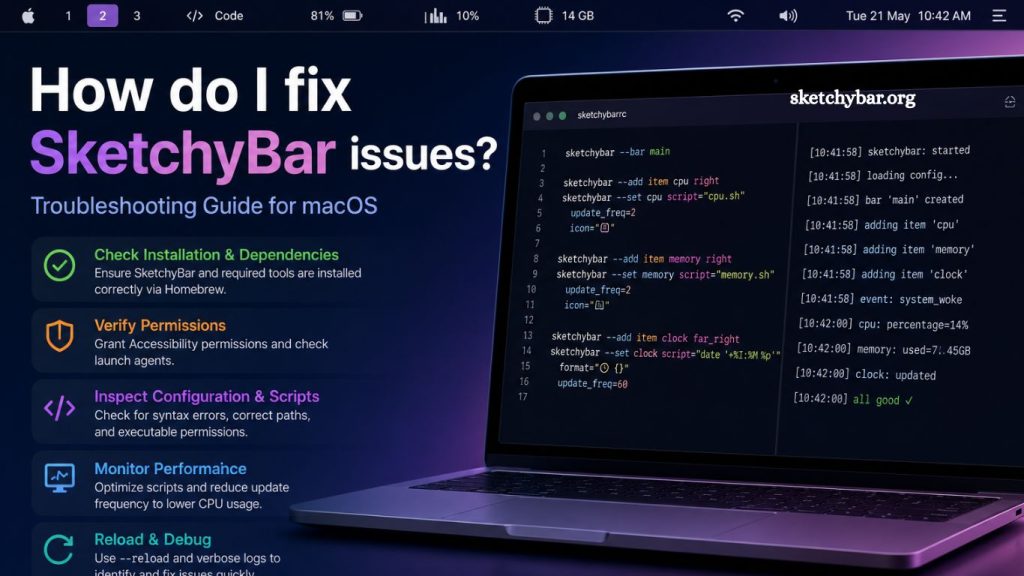
SketchyBar remains a powerful macOS status bar customization tool, widely used by developers and power users who want a minimal, fast, and highly configurable system bar. Despite its flexibility, users often face configuration errors, display glitches, script failures, or performance inconsistencies. Effective troubleshooting requires structured debugging, correct setup validation, and understanding how SketchyBar interacts with macOS processes and external scripts.
This guide explains how to fix SketchyBar issues using practical, proven methods. Each section focuses on real-world problems, performance optimization, and configuration stability while maintaining a clean and professional workflow.
Understanding Common SketchyBar Problems
SketchyBar issues usually originate from configuration errors, plugin conflicts, or missing dependencies. Users frequently report problems such as the bar not launching, items not rendering, or scripts failing silently.
Incorrect environment setup often triggers unexpected behavior. Missing fonts, broken shell scripts, or outdated Homebrew packages can also disrupt functionality. Identifying the root cause early improves troubleshooting speed and prevents repeated configuration failures.
Read More: SketchyBar Customization Guide
Verifying Installation and Dependencies
Proper installation forms the foundation of a stable SketchyBar setup. Missing dependencies are among the most common reasons for broken functionality.
Homebrew installation status should be checked first. SketchyBar depends on several system tools, such as Lua, yabai (optional integration), and shell utilities like bash or zsh. Outdated versions often lead to compatibility issues.
Command verification helps confirm installation integrity:
brew list sketchybar
Missing installation requires reinstalling through Homebrew:
brew install sketchybar
Dependency validation ensures the smooth execution of scripts and plugins connected to the bar.
Fixing SketchyBar Not Launching Issues
Launch failures typically stem from permission issues or misconfigured startup scripts. macOS security settings may block execution if SketchyBar lacks proper accessibility or automation permissions.
Granting permissions resolves most startup problems. Navigate to System Settings, then Privacy & Security, and allow SketchyBar under accessibility controls.
Startup script verification also plays a critical role. Launch agents located in ~/Library/LaunchAgents must point to the correct binary path. Incorrect file references prevent automatic launch during system boot.
Manual execution helps isolate the issue:
sketchybar –config ~/.config/sketchybar/sketchybarrc
A successful manual launch indicates a startup automation problem rather than a core installation error.
Resolving Blank or Missing Bar Elements
Empty or missing items usually result from configuration syntax errors or broken scripts. SketchyBar relies heavily on shell scripts and event-driven updates, meaning even a small syntax mistake can break rendering.
Configuration files located in ~/.config/sketchybar/ should be reviewed carefully. Missing item declarations or incorrect event names frequently cause display issues.
Log output provides valuable debugging insight:
sketchybar –verbose
Verbose mode reveals the results of script execution and highlights failed commands. Identifying the failing module enables targeted correction rather than a full reconfiguration.
Font issues also contribute to missing elements. Installing a Nerd Font package often resolves icon rendering problems.
Fixing Script Execution Failures
Script-based modules form the backbone of SketchyBar customization. Broken scripts commonly occur due to incorrect shell paths, missing environment variables, or permission restrictions.
Checking script execution manually confirms functionality:
bash ~/.config/sketchybar/plugins/example.sh
Failure output indicates syntax errors or missing dependencies inside the script.
Executable permission correction ensures proper runtime behavior:
chmod +x ~/.config/sketchybar/plugins/example.sh
An environment mismatch between terminal shells and the SketchyBar execution context often causes hidden failures. Explicitly defining shell paths inside scripts improves reliability.
Solving Performance Lag and High CPU Usage
Performance degradation often results from excessive polling intervals or inefficient scripts running too frequently. SketchyBar supports dynamic updates, but poorly optimized scripts can overload system resources.
Reducing update frequency improves responsiveness. Long-running loops should be avoided inside plugin scripts. Event-driven triggers provide a more efficient alternative.
Activity monitoring helps identify problematic processes:
top -o cpu
Resource-heavy scripts should be rewritten or replaced with lightweight alternatives. Caching outputs instead of continuously recalculating values significantly reduces CPU strain.
Fixing Configuration Reload Problems
Configuration reload issues occur when SketchyBar fails to detect changes in configuration files. File path mismatches or incorrect reload commands typically cause this behavior.
Manual reload command ensures immediate configuration update:
sketchybar –reload
Incorrect file permissions can block reload detection. Ensuring readable and writable access resolves most update failures.
Split configuration structures sometimes lead to incomplete reload execution. Consolidating configuration files into a single entry point improves stability and predictability.
Resolving Font and Icon Display Issues
Missing icons or incorrect glyph rendering often result from unsupported fonts. SketchyBar relies on icon fonts such as Nerd Fonts to display symbols correctly.
Installing a compatible font package resolves most display issues:
brew install font-hack-nerd-font
Font configuration in SketchyBar must accurately reference installed fonts. Incorrect font names lead to fallback rendering, causing visual inconsistencies.
Terminal font mismatch also affects output consistency. Matching the terminal and SketchyBar fonts ensures a uniform appearance across the system.
Fixing External Integration Problems (Yabai, Aerospace, and Others)
Integration with window managers such as yabai or automation tools may introduce conflicts if configurations overlap. Event listeners must align correctly between tools to maintain synchronization.
Incorrect event hooks prevent real-time updates. Verifying event subscription inside configuration files ensures proper communication between SketchyBar and external tools.
Restarting both services often resolves synchronization issues:
brew services restart yabai
brew services restart sketchybar
Consistent configuration alignment across tools ensures stable system behavior.
Debugging Log Output for Faster Resolution
Log analysis provides the fastest path to identifying root causes. SketchyBar offers verbose logging that reveals internal processing steps.
Running in debug mode exposes configuration errors, script failures, and missing dependencies:
sketchybar –log /tmp/sketchybar.log
Reading logs helps isolate failing modules without guesswork. Pattern recognition in logs significantly reduces troubleshooting time.
Resetting SketchyBar Configuration Safely
Persistent issues sometimes require a full configuration reset. Backing up the current settings ensures no loss of customization during recovery.
The reset process involves renaming the configuration directory:
mv ~/.config/sketchybar ~/.config/sketchybar_backup
Fresh installation restores default behavior. Gradual reintroduction of custom scripts helps identify problematic components.
Preventing Future SketchyBar Issues
Stable configurations rely on clean scripting practices and structured file management. Modular design improves maintainability and reduces error risk.
Version control systems like Git help track configuration changes and enable rollback when issues occur. Regular updates ensure compatibility with macOS updates and changes to dependencies.
Avoiding unnecessary polling loops and optimizing scripts improves long-term performance stability.
Frequently Asked Questions
Why is SketchyBar not launching on macOS?
SketchyBar may fail to launch due to missing permissions, incorrect launch agent setup, or broken installation paths. Grant accessibility permissions and verify launch scripts.
How do I reset SketchyBar configuration?
Reset SketchyBar by renaming the config folder: ~/.config/sketchybar. Restart the tool to generate default settings and rebuild gradually.
Why are SketchyBar icons not showing?
Missing icons usually occur due to unsupported fonts. Install Nerd Fonts and ensure SketchyBar references the correct font in its configuration.
How can I fix the errors in the SketchyBar script?
Run scripts manually in the terminal to detect errors. Check syntax, permissions, and dependencies, then apply chmod +x to make scripts executable.
Why is SketchyBar using high CPU?
High CPU usage often results from frequent polling loops or inefficient scripts. Replace loops with event-driven updates and optimize script execution intervals.
How do I reload the SketchyBar configuration?
Use the sketchybar command with the –reload option to apply configuration changes instantly. Ensure file permissions allow read and write access.
Can SketchyBar work with yabai or other window managers?
Yes, SketchyBar integrates with tools like yabai, but requires correctly matched event hooks and synchronized configuration settings.
Conclusion
SketchyBar issues are resolved effectively through structured troubleshooting, proper dependency management, and clean configuration practices. Stable performance depends on correct installation, accurate scripting, and consistent permission settings within macOS.