SketchyBar has become a powerful tool for macOS users who want full control over their menu bar. Built for flexibility, speed, and deep customization, it replaces the default macOS status bar with a modern, scriptable system. One of the biggest reasons for its popularity is the wide range of themes available. These themes allow users to design a clean, minimal, or highly functional workspace that matches their workflow.
This guide explores the best SketchyBar themes, what makes them stand out, and how to choose the right setup for your macOS environment.
Understanding SketchyBar and Its Purpose
SketchyBar is a lightweight, highly customizable status bar designed for macOS users who prefer control over appearance and functionality. Unlike the default Apple menu bar, SketchyBar supports scripting, dynamic modules, and theme-based layouts.
Users commonly integrate it with tools like yabai, Aerospace, or Raycast to build a fully optimized desktop environment. The result is a workspace that is not only visually appealing but also productivity-focused.
Read More: SketchyBar: Free Usage and Licensing Explained
SketchyBar themes define the structure, color scheme, spacing, icons, and modules displayed in the bar. The community typically shares these themes and can be modified easily through configuration files.
What Makes a Great SketchyBar Theme?
Before exploring the best options, it is important to understand what separates a good theme from a great one. High-quality SketchyBar themes typically include:
Clean Visual Design
A good theme avoids clutter and focuses on readability. Minimal spacing, consistent icon sets, and balanced alignment improve usability.
Performance Efficiency
Since SketchyBar runs continuously in the background, optimized themes use lightweight scripts and avoid unnecessary updates.
Customization Flexibility
Top themes allow users to modify modules, including CPU usage, battery status, workspace indicators, and media controls.
Compatibility with macOS Tools
The best setups integrate well with window managers and productivity tools like yabai, Hammerspoon, and aerospace-based workflows.
Consistent Color System
A unified color palette improves visual harmony and reduces distraction during long work sessions.
Best SketchyBar Themes for macOS Users
Below are some of the most widely used and highly rated SketchyBar themes in the community. Each one offers a unique approach to design and productivity.
Minimal Monochrome Theme
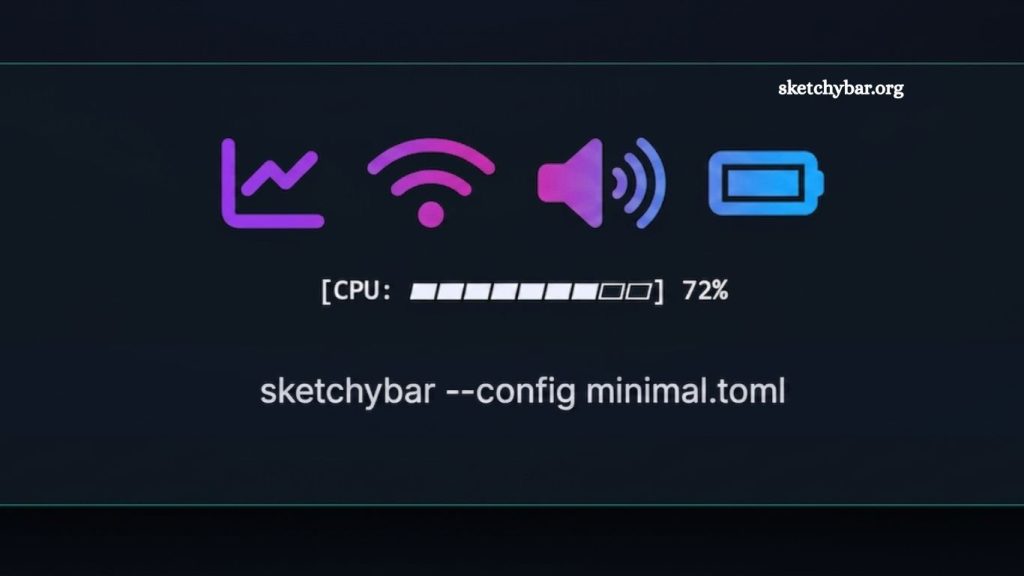
This theme focuses on simplicity and clarity. It uses black, white, and gray tones to create a distraction-free interface.
- Key Features
- Clean monochrome design
- Lightweight performance
- Essential system indicators only
- Easy configuration
This theme is ideal for developers and writers who prefer a distraction-free workspace. It avoids unnecessary animations and focuses entirely on function.
Neon Cyberpunk Theme
The neon cyberpunk theme delivers a futuristic aesthetic with glowing accents and vibrant colors. It is popular among users who prefer a bold desktop appearance.
- Key Features
- Neon-style color palette
- Animated modules
- Bright accent indicators for system stats
- High visual contrast
This theme works best on dark mode setups and pairs well with terminal environments like iTerm2 or Alacritty.
MacOS Native Style Theme
This theme replicates the default Apple menu bar design while adding additional functionality.
- Key Features
- Familiar macOS look and feel
- Seamless integration with system UI
- Lightweight module additions
- Balanced spacing
Users who want functionality without changing the core Apple aesthetic often choose this style. It blends naturally with macOS while adding productivity enhancements.
Productivity Dashboard Theme
Designed for power users, this theme turns SketchyBar into a control center.
- Key Features
- Workspace indicators
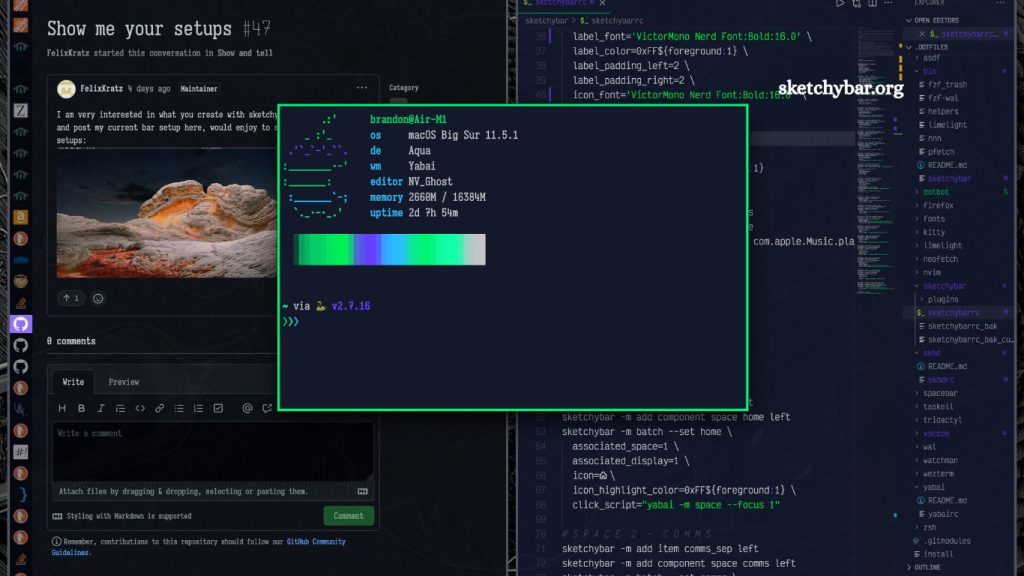
- CPU, RAM, and network monitoring
- Music and media controls
- Notification previews
This setup is ideal for developers, system administrators, and multitaskers who need real-time system insights.
Floating Glass Theme
The floating glass theme uses blur effects and semi-transparent elements for a modern UI experience.
- Key Features
- Frosted glass effect
- Soft shadows and transparency
- Smooth transitions
- Elegant spacing system
It works especially well on high-resolution Retina displays and complements macOS visual design principles.
Developer Focus Theme
This theme is built specifically for programmers and technical users.
- Key Features
- Git branch status integration
- Build status indicators
- Terminal-based updates
- Lightweight script execution
It connects directly with development workflows and provides real-time project updates inside the menu bar.
Retro Terminal Theme
Inspired by old-school computing environments, this theme uses green-on-black styling and monospace fonts.
- Key Features
- Terminal-inspired design
- Static, low-resource layout
- ASCII-style indicators
- Nostalgic UI elements
This theme appeals to users who enjoy retro computing aesthetics or terminal-based workflows.
How to Choose the Best SketchyBar Theme
Choosing the right theme depends on your workflow and personal preferences. Consider the following factors:
Productivity Needs
If you rely heavily on system stats and workspace switching, choose a productivity dashboard theme.
Visual Preference
If aesthetics matter most, neon cyberpunk or floating glass themes deliver strong visual appeal.
System Performance
On older Macs, minimal themes perform better due to reduced resource usage.
Workflow Integration
Developers benefit from themes that integrate with Git, terminal tools, and scripting environments.
Customizing SketchyBar Themes
Most SketchyBar themes are fully editable. Users can modify configuration files to adjust layout, colors, fonts, and modules.
Common customization options include:
- Adding or removing system modules
- Changing icon packs
- Adjusting spacing and padding
- Updating color variables
- Integrating scripts for dynamic updates
A strong advantage of SketchyBar is its script-based architecture, which allows real-time updates without restarting the system.
Why SketchyBar Themes Matter
A well-designed menu bar improves both productivity and focus. Instead of switching between multiple system tools, users can view essential information directly in the status bar.
SketchyBar themes also help:
- Reduce visual clutter
- Improve workflow efficiency
- Provide instant system feedback
- Create a personalized macOS experience
The right setup transforms macOS into a highly optimized workspace rather than a standard desktop environment.
Installation and Setup Overview
Installing SketchyBar themes typically involves:
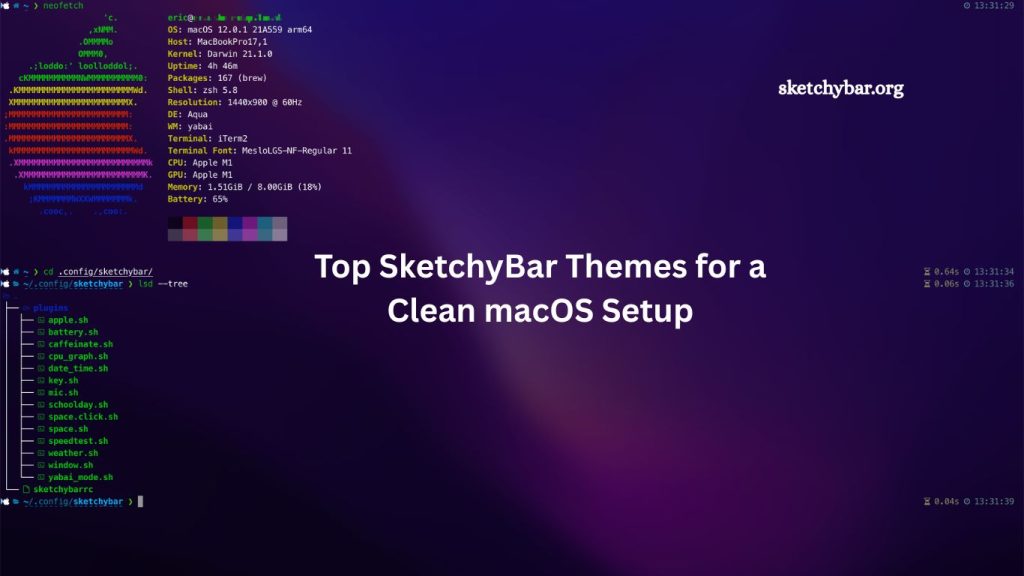
- Installing SketchyBar via a package manager like Homebrew
- Cloning a theme repository from GitHub
- Editing configuration files
- Running the SketchyBar service
- Restarting the bar to apply changes
Most community themes include setup instructions, making installation straightforward even for beginners.
Advanced Tips for Better Performance
To get the most out of SketchyBar, consider these optimization tips:
- Disable unnecessary modules to reduce CPU usage
- Use lightweight scripts instead of heavy polling functions
- Keep refresh intervals optimized
- Organize configuration files for easier maintenance
- Sync themes with system-wide dark or light mode
These adjustments help maintain smooth performance while keeping the interface responsive.
Frequently Asked Questions
What is SketchyBar used for?
SketchyBar replaces and customizes the macOS menu bar with dynamic, scriptable modules.
Are SketchyBar themes free to use?
Most SketchyBar themes are free and shared by the community on GitHub.
Can beginners use SketchyBar themes easily?
Yes, many themes include setup guides that make installation simple, even for beginners.
Do SketchyBar themes affect system performance?
Lightweight themes have minimal impact, while heavy scripts may slightly use more resources.
Can I customize SketchyBar themes?
Yes, users can edit configuration files to change colors, layout, and modules.
Do SketchyBar themes work with all macOS versions?
They generally work on modern macOS versions, but compatibility depends on updates.
Which SketchyBar theme is best for productivity?
Productivity-focused dashboard themes are best for system monitoring and workflow efficiency.
Conclusion
SketchyBar themes transform macOS into a more powerful and personalized workspace. Each theme offers a different balance of design, performance, and functionality, allowing users to build an environment that fits their workflow. Minimal setups improve focus, while feature-rich dashboards enhance productivity and system monitoring.